 EnterCrawl
 user guide
This guide shows you how to install EnterCrawl, crawl a website, read the results and send the fixes to a developer. You do not need technical knowledge. Read the sections in order the first time.
This guide is for EnterCrawl version 0.1.1. The pictures show a crawl of books.toscrape.com, a practice website for crawler tests. Your own crawls show your own numbers.
Before you start
You need these things:
- A computer with Windows 10 or Windows 11. EnterCrawl does not work on a Mac.
- An Entermind email address. Only Entermind staff can download EnterCrawl.
- An internet connection to the website that you want to check.
- About 25 MB of free disk space for the program. Each crawl also uses disk space, from about 6 MB for a site of 300 pages.
You do not need an administrator account. EnterCrawl does not install anything. It is one program file that you open.
Caution: Crawl only websites that belong to Entermind or to a client that agreed to the audit. A crawl sends many requests to the website. Some website owners do not like that.
Download and open EnterCrawl
Download the file
- Go to entercrawl.entermind.my.
- Click Download EnterCrawl.
- A Cloudflare sign-in page opens. Type your Entermind email address and follow the steps on the page. If the page sends you a code, find the email from Cloudflare in your inbox and type the code.
- The download starts. The file has a name such as
EnterCrawl-0.1.1.exe.
Caution: Your browser can show a warning that the file is "not commonly downloaded". Do the next step only for a file that you downloaded from entercrawl.entermind.my.
- If the browser shows the warning, keep the file. In Microsoft Edge, click the three dots beside the download, then click Keep. In Google Chrome, click Keep.
- Move the file from your Downloads folder to a folder where you keep programs, for example
Documents\EnterCrawl. This step is optional, but it keeps the file safe from a Downloads clean-up.
Open EnterCrawl for the first time
Caution: EnterCrawl has no digital signature yet. Because of this, Windows shows a blue warning the first time you open the file. Do the steps below only for the file from entercrawl.entermind.my.
- Double-click the EnterCrawl file.
- If Windows shows "Windows protected your PC", click More info.
- Click Run anyway.
- The EnterCrawl window opens on the Dashboard. The next time, the file opens with no warning.
If your company antivirus program stops the file, ask the IT team to allow it. Give them the file name and the address entercrawl.entermind.my.
To open EnterCrawl quickly next time, right-click the file and click Pin to taskbar or Pin to Start. On Windows 11, click Show more options first if you do not see these items.
One window only. Only one EnterCrawl window can be open at a time. If you open the file again, Windows shows the window that is already open.
The EnterCrawl window
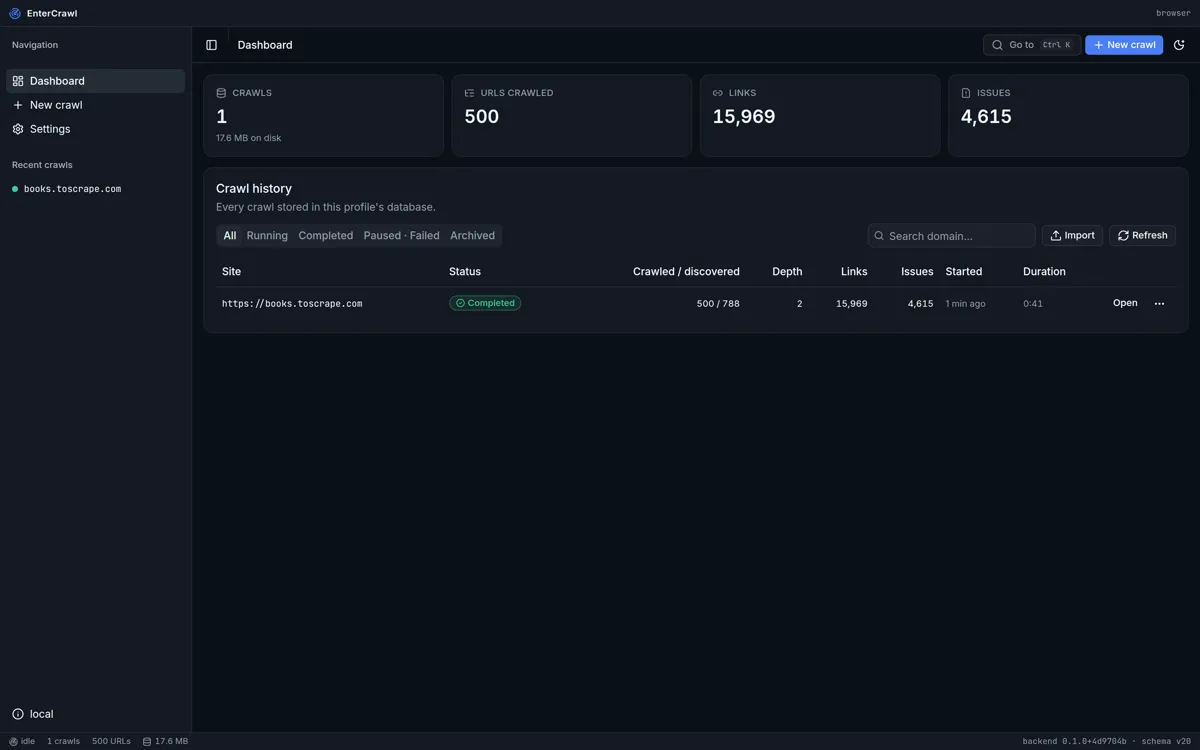
The window has four parts:
- The side bar on the left. It has Dashboard, New crawl and Settings. Under Recent crawls it shows your last five crawls. A dot that pulses means that the crawl runs now. A red dot means that the crawl failed.
- The top bar. It shows where you are, a Go to button and a New crawl button.
- The main area in the middle. It shows the screen that you selected.
- The status bar at the bottom. It shows the number of crawls and the size of your data. During a crawl, it shows the progress and the speed.
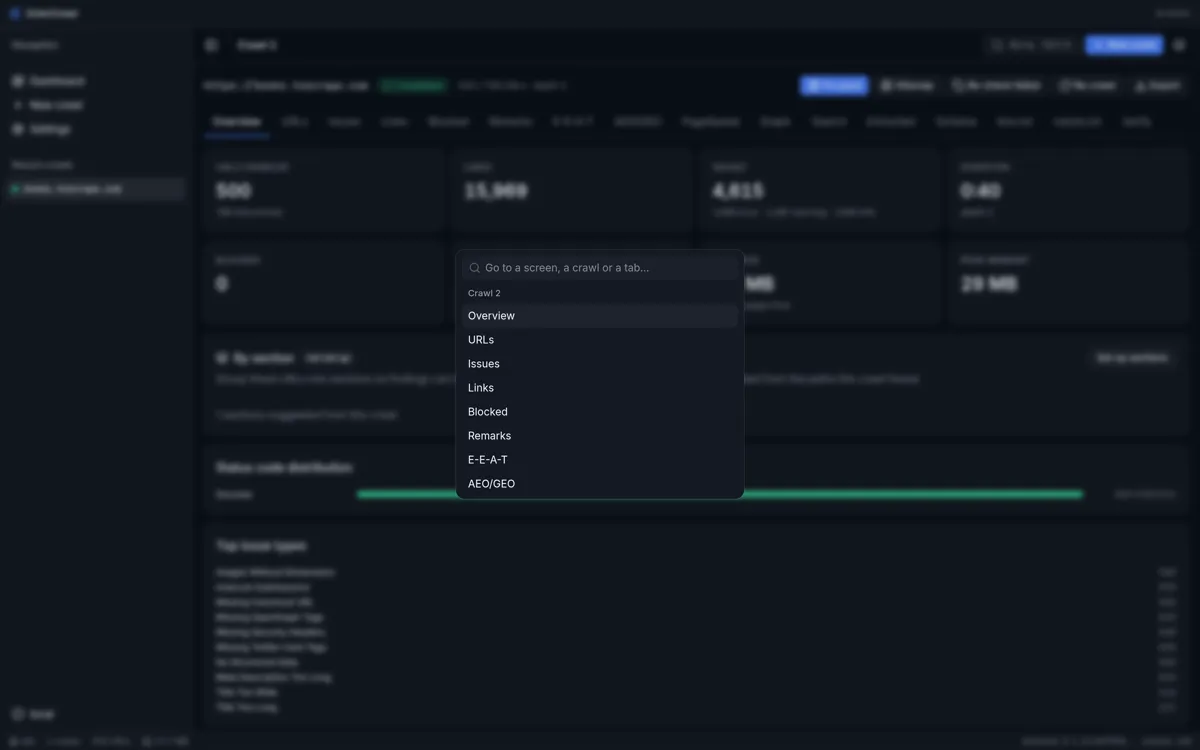
Go to any screen with Ctrl+K
Press Ctrl+K, or click Go to. Type the name of a screen or a website. Press Enter to open it. This list only opens screens. It cannot start, stop or delete a crawl.
Change the theme
- Click the Appearance button (the moon or sun icon at the top right).
- Under Theme, click Light, Dark or Follow system.
- Under Density, click Compact, Default or Comfortable to change the height of table rows.
EnterCrawl starts in the dark theme with compact rows.
Your first crawl
A crawl is one visit of EnterCrawl to a website. EnterCrawl opens the first page, reads its links and then opens each linked page of the same site. It keeps a record of every page.
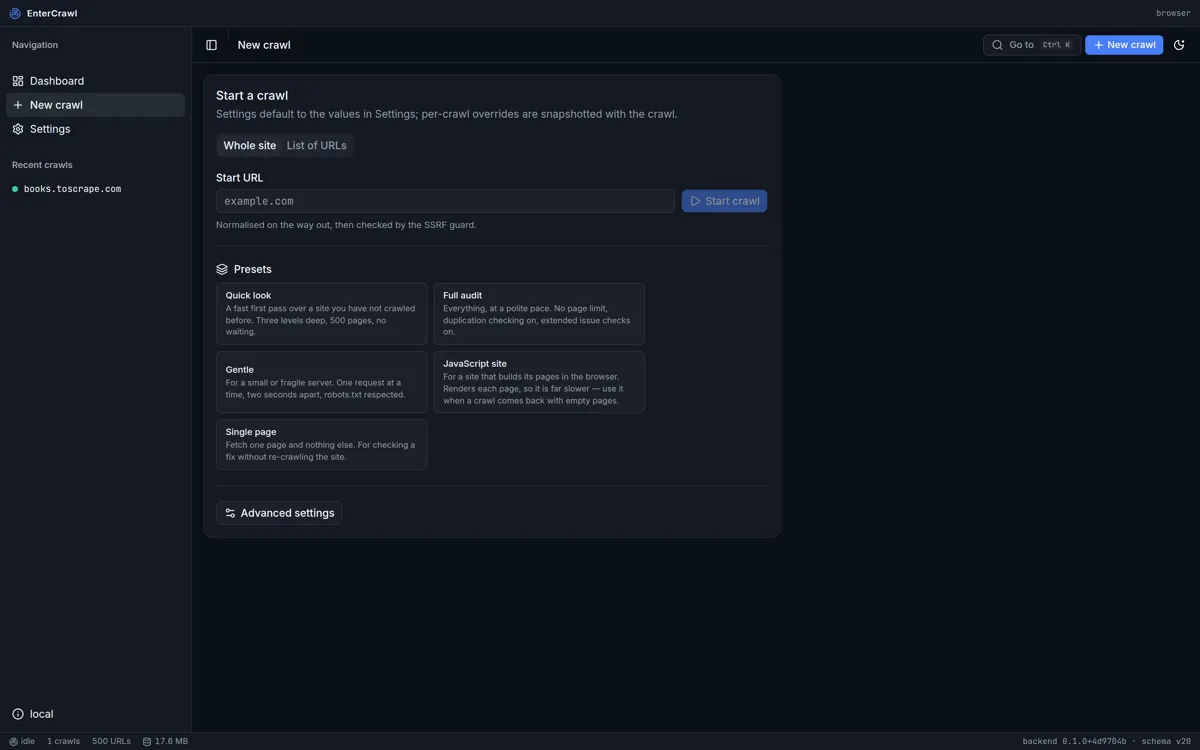
Crawl a whole website
- Click New crawl.
- Make sure that Whole site is selected.
- In Start URL, type the address of the website, for example
example.com. You do not need to typehttps://. EnterCrawl adds it and shows the full address under the box. - Click a preset under Presets. The table below tells you which one to choose.
- Click Start crawl, or press Enter.
EnterCrawl opens the Overview of the new crawl. You can look at the results while the crawl runs. The tables refresh every few seconds.
Which preset to choose
| Preset | Use it for | What it sets |
|---|---|---|
| Quick look | A first look at a site that you do not know. | 3 levels deep, stops at 500 pages, no wait between requests, 8 requests at a time. |
| Full audit | A complete audit for a client. | 10 levels deep, no page limit, 1 second between requests, duplicate check on, extra issue checks on. |
| Gentle | A small or slow website server. | One request at a time, 2 seconds apart. |
| JavaScript site | A site whose pages come back empty in a normal crawl. | Opens each page in Chrome or Edge on your computer. This is much slower. |
| Single page | A check of one page after a fix. | Reads one page and nothing more. |
If you do not click a preset, EnterCrawl uses the values in Settings. The normal values are 3 levels deep, no page limit and 1 second between requests. On a large website, this can take hours. For a first look, use Quick look.
You cannot save your own presets in this version. To change one value for one crawl only, click Advanced settings before you click Start crawl. Change the value, then click Done. Clear overrides removes your changes.
Crawl a list of pages
Use this to check a list of pages again, for example after a developer fixed them. EnterCrawl reads only these pages and does not follow their links.
- Click New crawl.
- Click List of URLs.
- Paste the addresses, one on each line. EnterCrawl ignores empty lines, lines that start with
#and addresses that you typed twice. The limit is 50,000 addresses. - Click Start crawl.
All addresses must be on the same website. If the list has more than one website, EnterCrawl reads only the first website and shows the others as blocked.
While the crawl runs
The crawl screen shows a progress bar, the number of pages, the speed, the time so far and an estimate of the time left. Recent observations shows the last things that EnterCrawl noticed.
- Click Pause to stop for a short time. The button changes to Resume. Click it to continue.
- Click Stop to end the crawl. EnterCrawl keeps all the pages that it found. You can continue a stopped crawl later from the Dashboard (see Manage your crawls).
Only one crawl can run at a time. When the crawl ends, the status changes to Completed. There is no sound or message, so look at the status.
Caution: If you close the EnterCrawl window during a crawl, the crawl stops. EnterCrawl does not ask first. Your results stay safe, and you can resume the crawl from the Dashboard.
The buttons on a crawl
Each crawl screen has five buttons at the top right:
| Button | What it does |
|---|---|
| Fix pack | Downloads one zip file with the task list and the files for the developer. See Send the fix pack. |
| Sitemap | Downloads a sitemap.xml file, made from the pages that this crawl found. |
| Re-check failed | Starts a new list crawl of only the pages that gave an error. The first crawl stays as it is, so you can compare the two. |
| Re-crawl | Crawls the same site again and puts the new results in place of the old results. Use it after fixes, to fill the Verify screen. See Check the fixes with Verify. |
| Export | Saves the data as a spreadsheet or another file. See Export data. |
The 16 crawl screens
Below the buttons, a row of tabs opens the 16 screens of a crawl. On the Overview, you can click most numbers to open the rows behind them. Every web address in a table opens in your normal web browser.
Most tables load 200 rows first. Scroll down to load more. The line under the table shows how many rows there are.
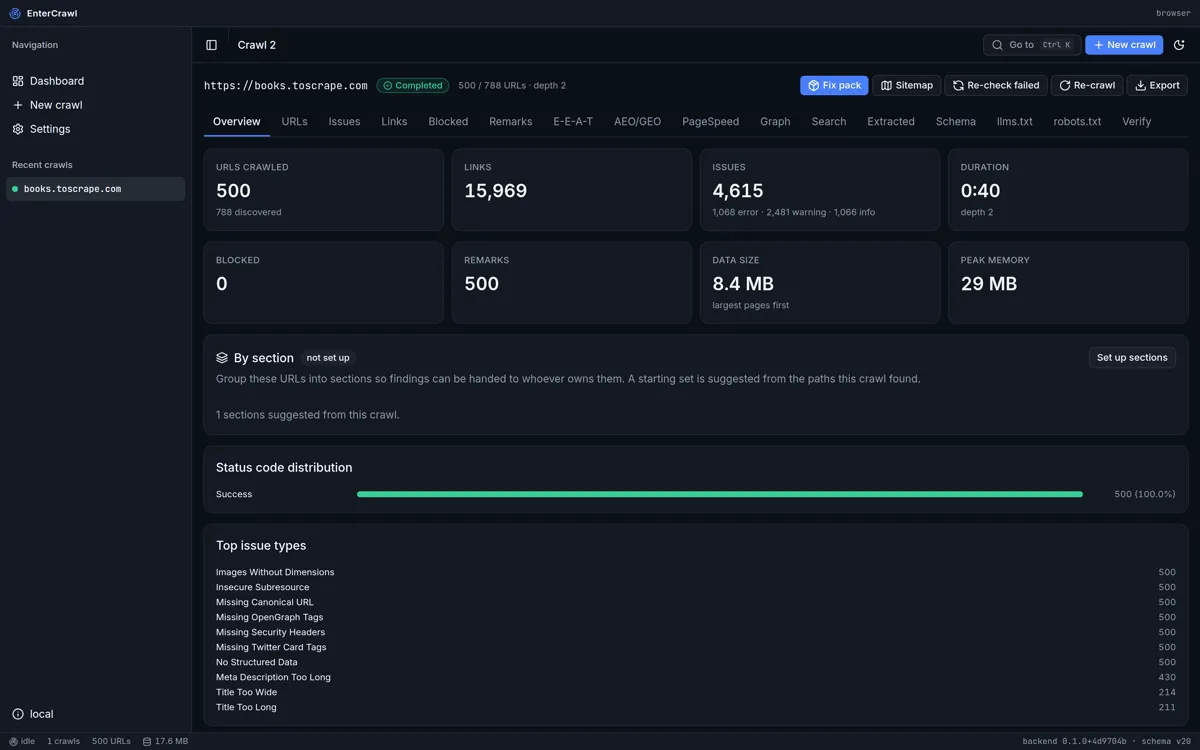
Overview
The Overview is the summary of the crawl. The top cards show the pages crawled, links, issues, time, blocked addresses, remarks, data size and memory. Click a card to open its screen.
Below the cards, the Overview can show these parts. Each part shows only when the crawl has data for it:
- By section: issues for each part of the site. See Sections.
- Sitemap coverage: pages in the sitemap that the crawl did not find, and pages that the crawl found that are not in the sitemap.
- Redirects: how many redirects there are, and which have more than one step, a loop or an error.
- Hreflang: language versions of pages that do not point to each other.
- Why URLs were skipped: each reason, with the setting that controls it.
- Status code distribution and Top issue types.
In this version, a click on a name in Top issue types opens the Issues screen with all issues, not only that type. Use the search box on the Issues screen to find the type.
URLs
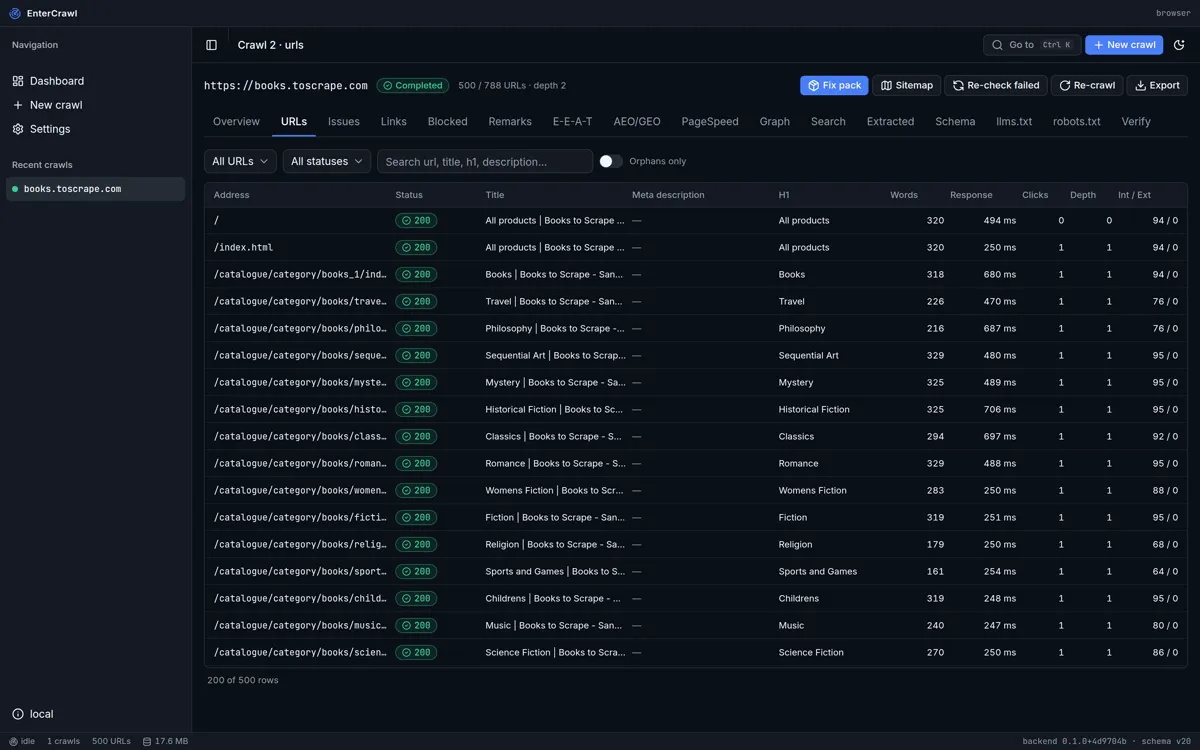
The URLs screen has one row for each page that EnterCrawl opened. The columns are the address, the status code, the title, the meta description, the H1 heading, the number of words, the response time, the clicks from the home page, the depth and the internal and external links.
- Use the first list to show All URLs, Internal or External pages.
- Use the second list to show pages by status, for example 4xx Client error for broken pages.
- Type in the search box to find text in the address, title, H1 or description.
- Turn on Orphans only to show pages that no other page links to.
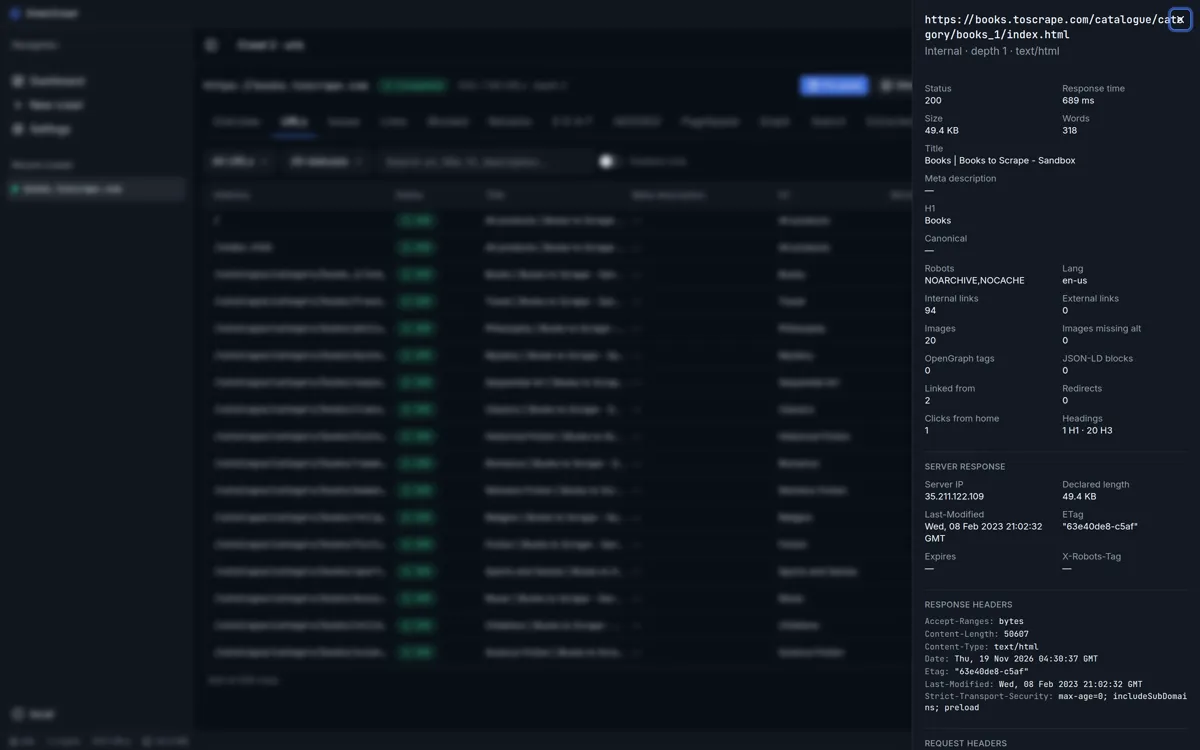
Click a row (not the address) to open the detail panel. It shows everything about the page: status, size, words, title, description, canonical address, links, images, headings, the server response and the request and response headers. Click the address to open the page in your browser.
Issues
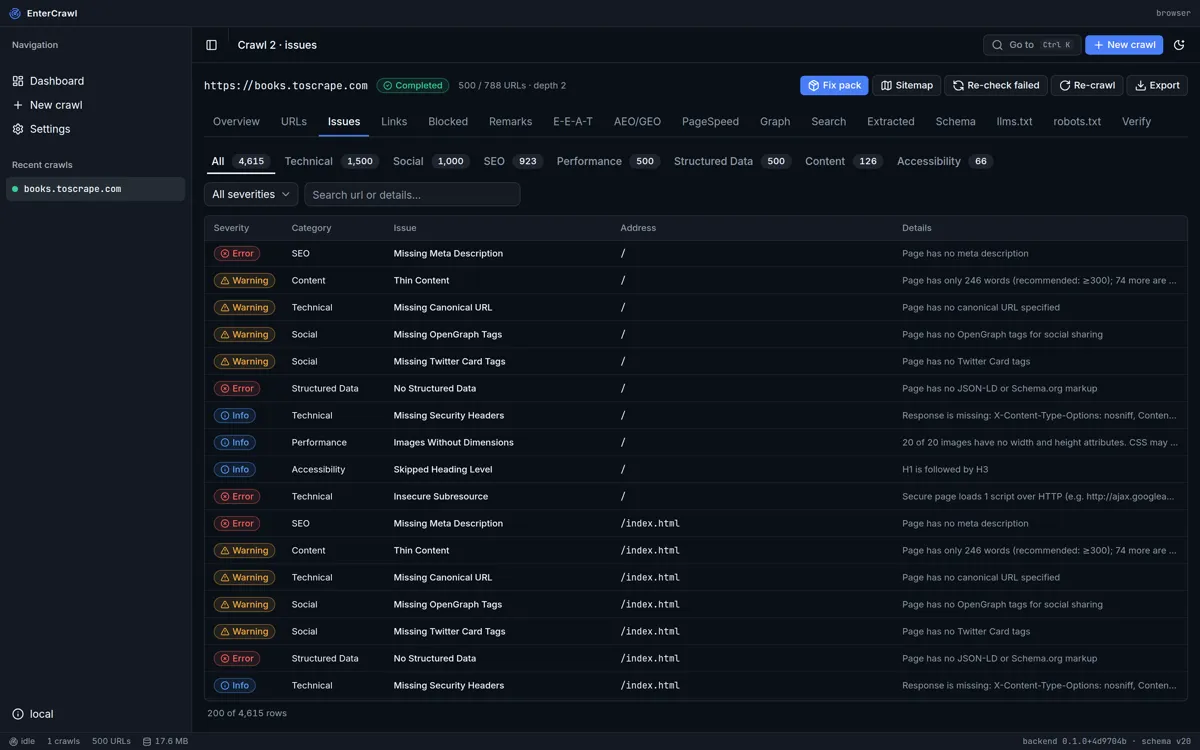
The Issues screen lists every problem that EnterCrawl found, page by page. EnterCrawl checks for more than 60 kinds of issue.
- The tabs at the top are the issue groups, for example SEO, Content, Technical and Accessibility. Each tab shows its count.
- The severity list shows Error, Warning or Info. Start with errors.
- The columns are severity, group, issue, address and details.
This screen does not tell you how to fix each issue. The fix instructions are in the fix pack, in remediation-plan.csv and worklist.csv.
Some pages, such as login and cart pages, often have issues that do not matter. EnterCrawl hides issues on these pages with Issue exclusion patterns in Settings. A line above the table tells you how many issues it hides.
Links
The Links screen has three tabs. Internal links and External links show each link with its source page, target, status, anchor text and position. Click Broken only to see only links to pages with errors. External URLs shows each address outside the site that the site links to, with the number of links.
Blocked
The Blocked screen lists addresses that EnterCrawl found but did not open, and the reason. Reasons include robots.txt (the site does not allow it), External (another website), Depth (too far from the start page), Max URLs (the page limit) and Pattern or Extension (a filter in Settings). Use this screen when a page is missing from your results.
Remarks
Remarks are things that EnterCrawl noticed while it read a page, which are not issues. An example: the crawl started on example.com, but the site says that www.example.com is its main address. Read the remarks before you send results to a client. A remark can mean that you crawled the wrong address.
E-E-A-T
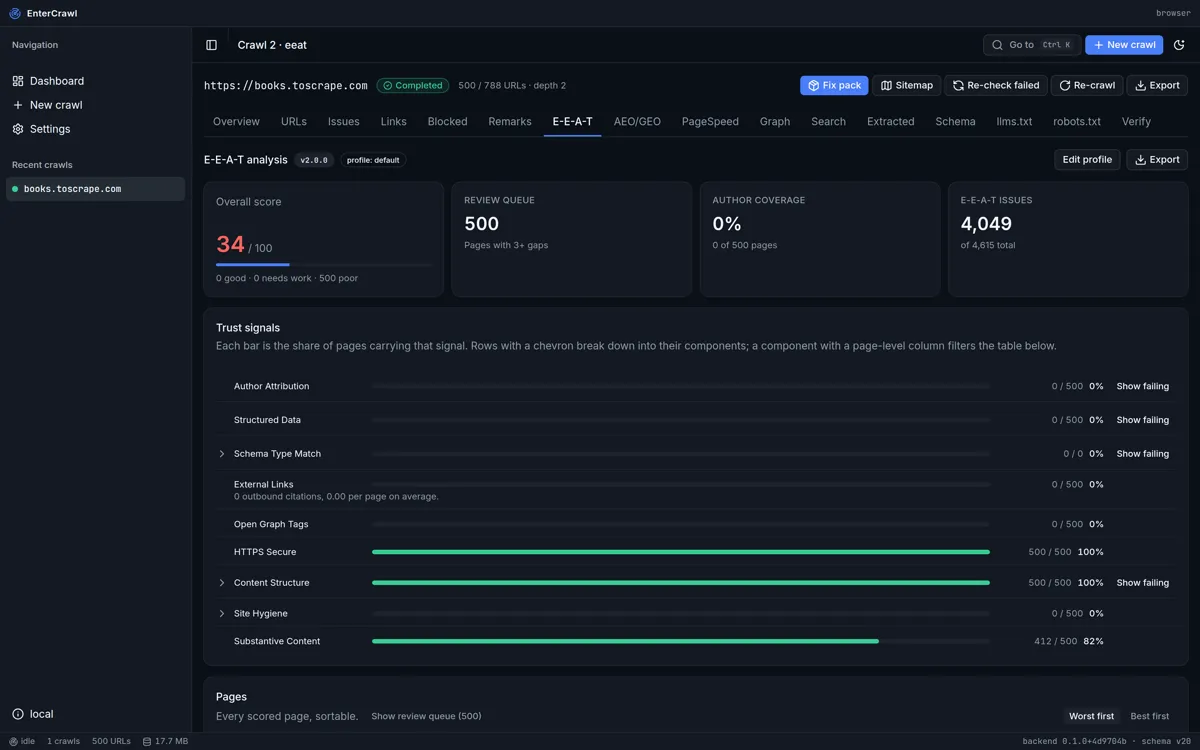
E-E-A-T means experience, expertise, authority and trust. This screen gives each page a score from 0 to 100, and the site an overall score. EnterCrawl uses fixed rules, so the same crawl always gets the same score.
- Overall score: 80 and more is good, 60 to 79 needs work, under 60 is poor.
- Review queue: pages with 3 or more gaps. Start with these.
- Trust signals: the share of pages with each signal, for example an author or structured data. Click Show failing to see the pages without it.
- Pages: every page with its score and its gaps.
- Recommendations: what to do first.
Edit profile changes the points for each signal and the expected schema types. The profile applies to all crawls. Change it only if you know why. Revert to shipped puts the normal profile back.
AEO/GEO
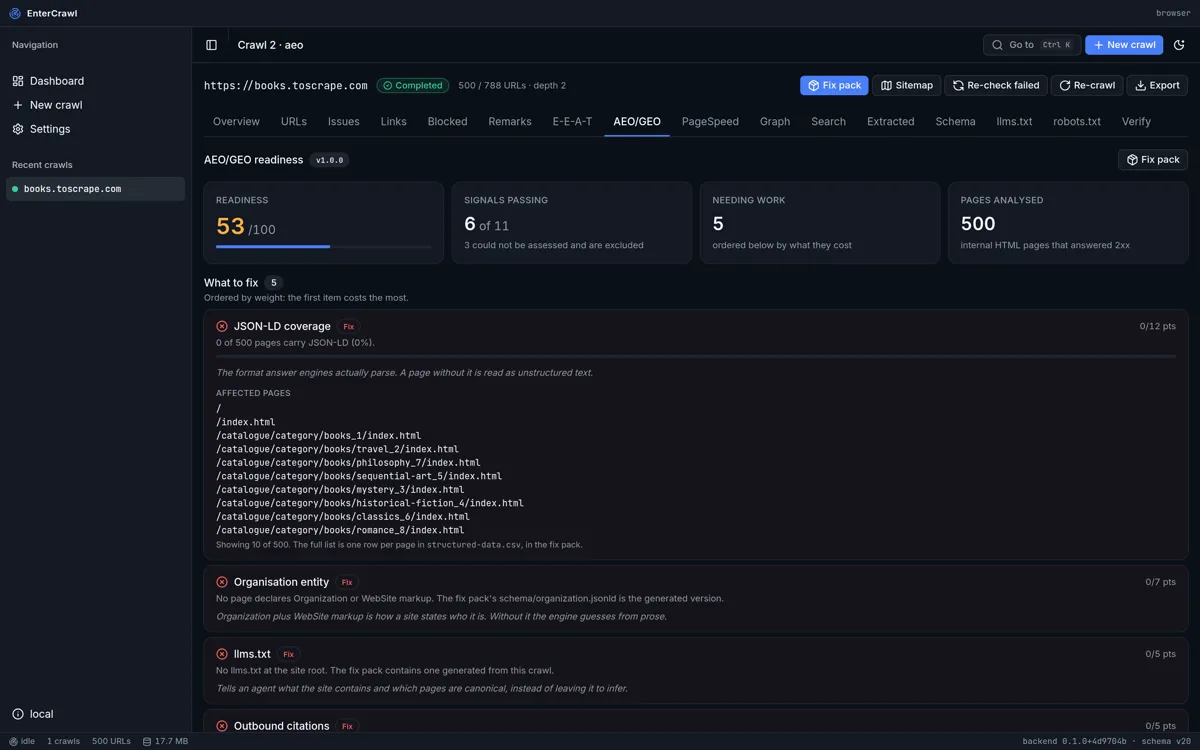
This screen shows how easily answer engines, such as ChatGPT, Gemini and Perplexity, can read and quote the site. It checks 14 signals, for example AI crawler access, llms.txt, structured data, authors, dates and questions with answers. The score is from 0 to 100.
- What to fix: the signals that failed, with the most costly first. Each one shows the pages it affects.
- Not assessed: signals that EnterCrawl could not check. They do not count against the score.
- Already in place: the signals that passed.
This screen also reads the live website when you open it, so it needs an internet connection.
PageSpeed
PageSpeed measures Google Core Web Vitals for up to 10 main pages of the crawl, on mobile and on desktop. It needs your own Google API key. See Google API key for PageSpeed.
- Open the PageSpeed screen.
- Click Run analysis. Each page takes up to one minute.
- Read the score for each page. 90 and more is good, 50 to 89 needs work, under 50 is poor.
If Google stops the run because of its daily limit, click Re-run analysis later.
Graph
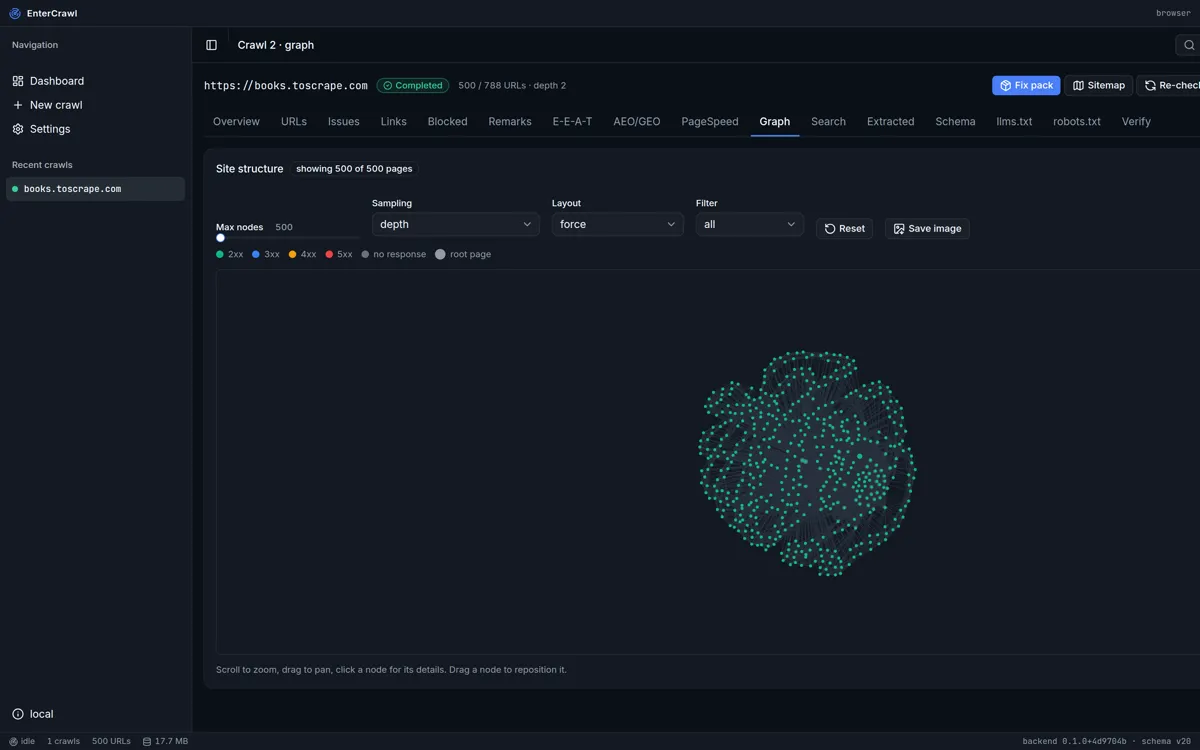
The Graph draws the site as a map. Each dot is a page and each line is a link. The colour shows the status. A dashed ring marks a page that no other page links to.
- Scroll to zoom. Drag to move the map. Click a dot to see its page.
- Max nodes sets how many pages to draw, up to 10,000.
- Layout changes the shape of the map.
- Save image downloads the map as a picture for a report.
Search
Search page content finds words in the text of every page, not only in titles. Several words find pages with all of them. A * at the end of a word finds words that start with it.
Term coverage shows how many pages mention each word that you type. Type the words that the client wants to be found for, one on each line. A word with zero pages is a topic that the site does not cover.
Extracted
The Extracted screen shows the values that your own rules found on each page, for example a price, an author or the analytics tag. You must make the rules before the crawl. See Custom rules. This screen shows the first 200 pages only. Export the URLs to see all pages.
Schema
The Schema screen checks the structured data (JSON-LD) on all pages together. It shows the types that it found, the pages with errors and a list of what to fix, with the largest problem first.
Use Generate JSON-LD to make new structured data from the crawl. Leave Page URL empty for the home page markup. Click Generate, then Copy <script> tag, and send the text to the developer. EnterCrawl does not guess facts such as a logo. Add these facts in the site profile.
llms.txt
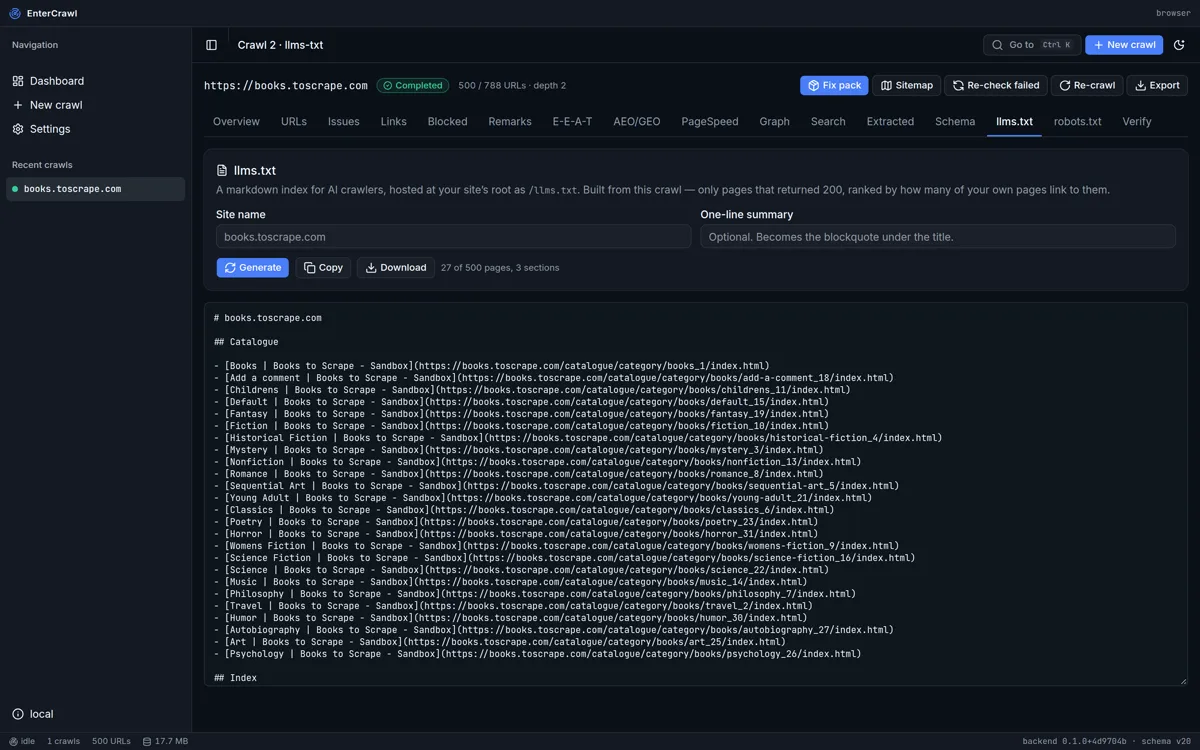
An llms.txt file tells AI assistants what the site contains. EnterCrawl makes it from the crawl. It uses only pages that loaded, and puts first the pages that the site links to most.
- Type the Site name and a One-line summary. Both are optional.
- Click Generate.
- Click Download or Copy.
You cannot type changes into the file itself in the app. To change it, download it and edit it in Notepad.
robots.txt
This screen reads the robots.txt file of the live site and shows a corrected file. EnterCrawl keeps every rule as it is and changes only the Sitemap lines. Now shows the current file and Proposed shows the new file. Click Download to save the new file.
Verify
Verify compares the issue counts before and after a Re-crawl. It is empty until you do the first Re-crawl of the crawl. See Check the fixes with Verify.
Send the fix pack
The fix pack is one zip file for the person who fixes the website. Click Fix pack at the top of any crawl screen. The file goes to your downloads, with a name that starts with entercrawl_fixpack_ and ends with .zip.
The zip file can contain these files. EnterCrawl leaves out a file that would be empty and says why in README.txt.
| File | What it is |
|---|---|
README.txt | What is in the pack. Read it first. |
remediation-plan.csv | Every finding as a task, the most costly first, with a priority and the number of pages. The status and owner columns are empty for you to fill in. |
aeo-readiness.md | The AEO/GEO readiness report over 14 signals. |
worklist.csv | Issues that a person must fix by hand, with the page, what is there now and what to do. |
structured-data.csv | Every page, the structured data it has and what it is missing. |
sitemap.xml | A sitemap of the pages that search engines can index. Ready to publish. |
robots.txt | The corrected robots.txt. Ready to publish. |
llms.txt | The llms.txt file. Ready to publish. |
schema/organization.jsonld | Organisation markup for the home page only. |
schema/faq/… | FAQ markup for each page that has questions and answers without it. Up to 200 files. |
diagnostics.csv | Pages that did not answer, slow pages and heavy pages. |
The fix pack reads robots.txt from the live site, so you need an internet connection to make it.
Check the fixes with Verify
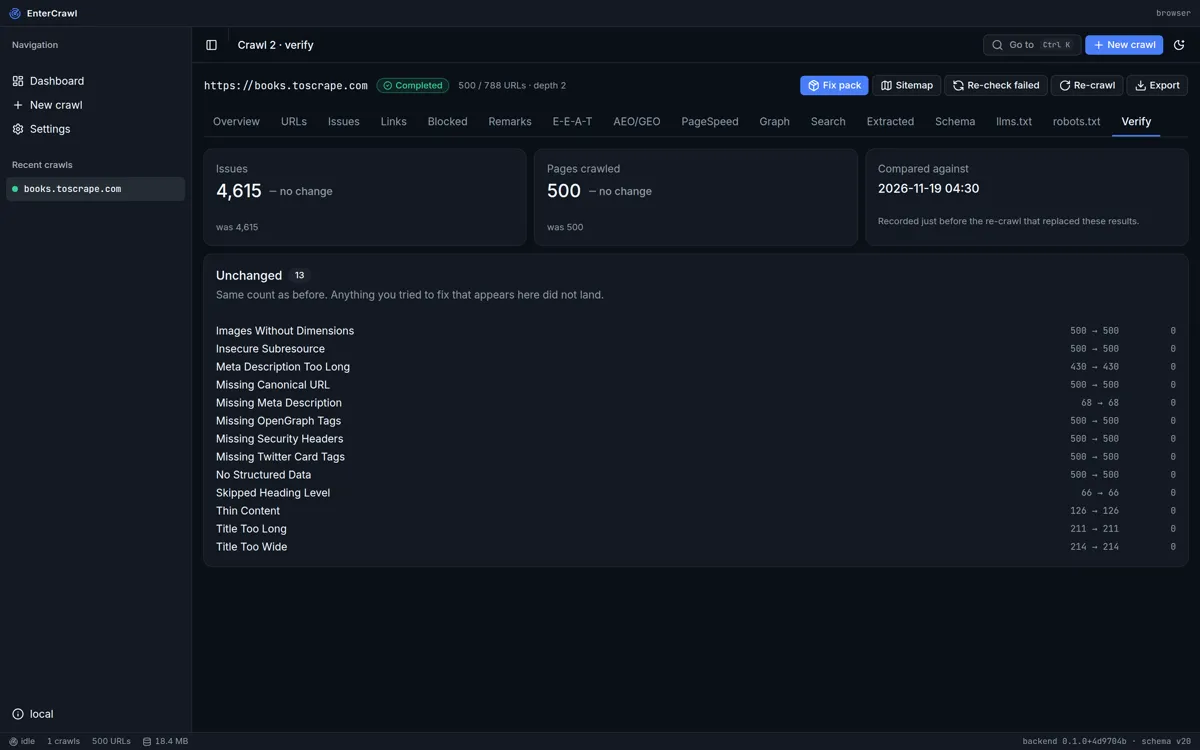
Use Verify when the developer tells you that the fixes are live.
Caution: Re-crawl puts the new results in place of the old results. You cannot undo it. If you want to keep the old results, export a crawl archive first (step 2).
- Open the crawl that you sent the fix pack from.
- Optional: click Export, tick Crawl archive and click Download. This keeps a copy of the old results.
- Click Re-crawl.
- Read the message, then click Replace and re-crawl.
- Wait until the status is Completed.
- Open the Verify tab.
Verify shows three lists. Fixed has issues with a lower count than before. Introduced has issues with a higher count. Unchanged has issues with the same count: a fix in this list did not work.
Re-crawl uses the settings in Settings today, not the settings of the first crawl. If the new crawl reached more or fewer pages, Verify shows a warning, because the counts then compare different pages. Use the same preset values for both crawls.
Only Re-crawl fills Verify. Crawl this site again on the Dashboard makes a new, separate crawl, and its Verify screen stays empty.
Export data
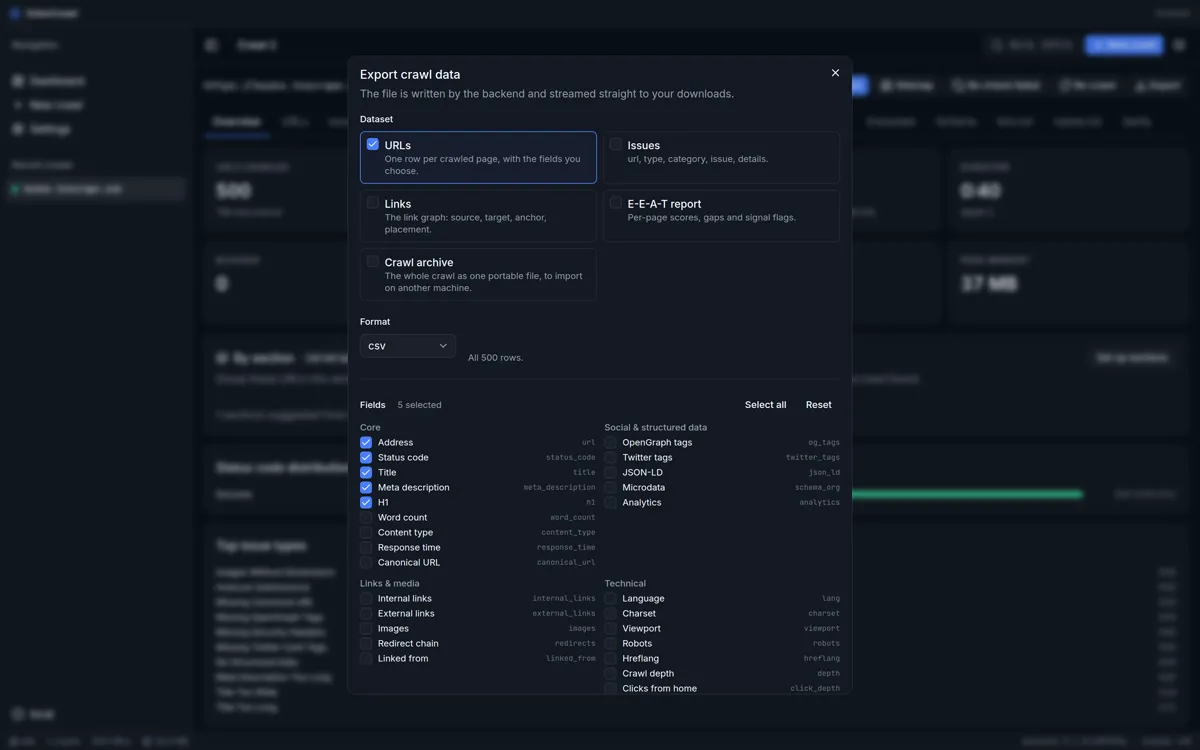
- Click Export at the top of a crawl screen.
- Tick the data that you want under Dataset: URLs, Issues, Links, E-E-A-T report or Crawl archive.
- Select a Format: CSV, JSON, Excel or XML.
- For URLs, tick the columns under Fields. The normal columns are address, status code, title, meta description and H1.
- Click Download.
Caution: Excel works for one dataset only. If you tick two or more datasets, select CSV or JSON. With Excel, the export fails with the message "format must be csv, json or xml".
- Two or more datasets come together in one zip file.
- The export always contains all rows. It does not use the filter or the search on the screen. Filter the spreadsheet in Excel after the export.
- The E-E-A-T report and the crawl archive export alone.
- A crawl archive is the whole crawl in one file. Use it to give a crawl to a colleague, or to keep a copy. It is not a spreadsheet.
The file goes to the place where your computer saves downloads, normally the Downloads folder.
Manage your crawls
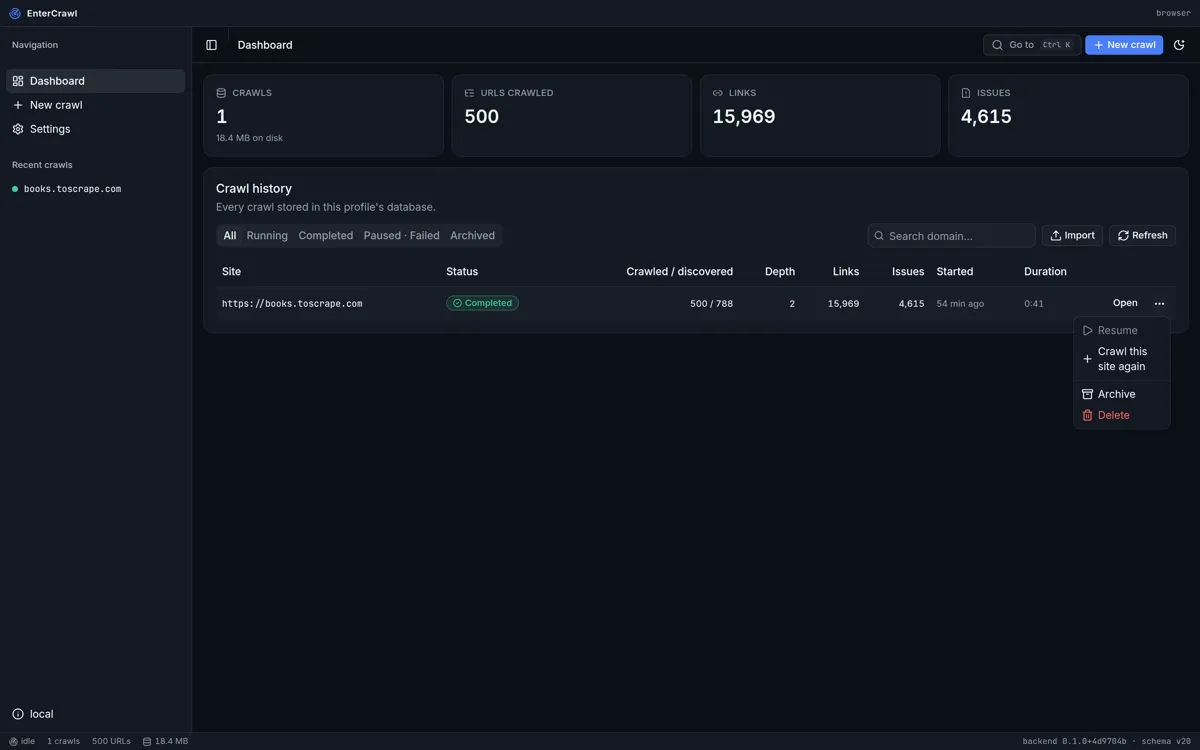
The Dashboard lists every crawl. Use the tabs to show All, Running, Completed, Paused · Failed or Archived crawls. Type a domain in the search box to find a crawl. Click Open to open a crawl.
Click the three dots at the end of a row for more actions:
| Action | What it does |
|---|---|
| Resume | Continues a stopped, paused or failed crawl from where it stopped, with its first settings. |
| Crawl this site again | Opens New crawl with the same address. This makes a new crawl with today's settings. |
| Archive | Moves the crawl to the Archived tab. Use Unarchive to move it back. Nothing is deleted. |
| Delete | Removes the crawl and all its data. |
Caution: You cannot undo Delete. Export a crawl archive first if you think that you will need the crawl again. You cannot delete a crawl that runs: stop it first.
A large crawl can take some time to delete. You can use the app while it deletes.
Open a crawl from a colleague
- Ask your colleague to export a Crawl archive and send you the file.
- On the Dashboard, click Import.
- Select the file. Its name ends with
.entercrawl.json.
The crawl opens as a new crawl in your list. The limit is 512 MB for each file.
Settings
Settings are the normal values for every new crawl. To change a value for one crawl only, use Advanced settings on the New crawl screen.
- Click Settings in the side bar.
- Click a group name at the top, or scroll.
- Change the values.
- Click Save.
Caution: EnterCrawl does not warn you about changes that you did not save. Click Save before you go to another screen.
Reset puts every setting back to its first value, also the issue exclusion patterns. Your stored crawls do not change, but their Issues screens can show more issues after a reset.
Next to each setting name, the app shows a short technical name, for example maxDepth. You can ignore it.
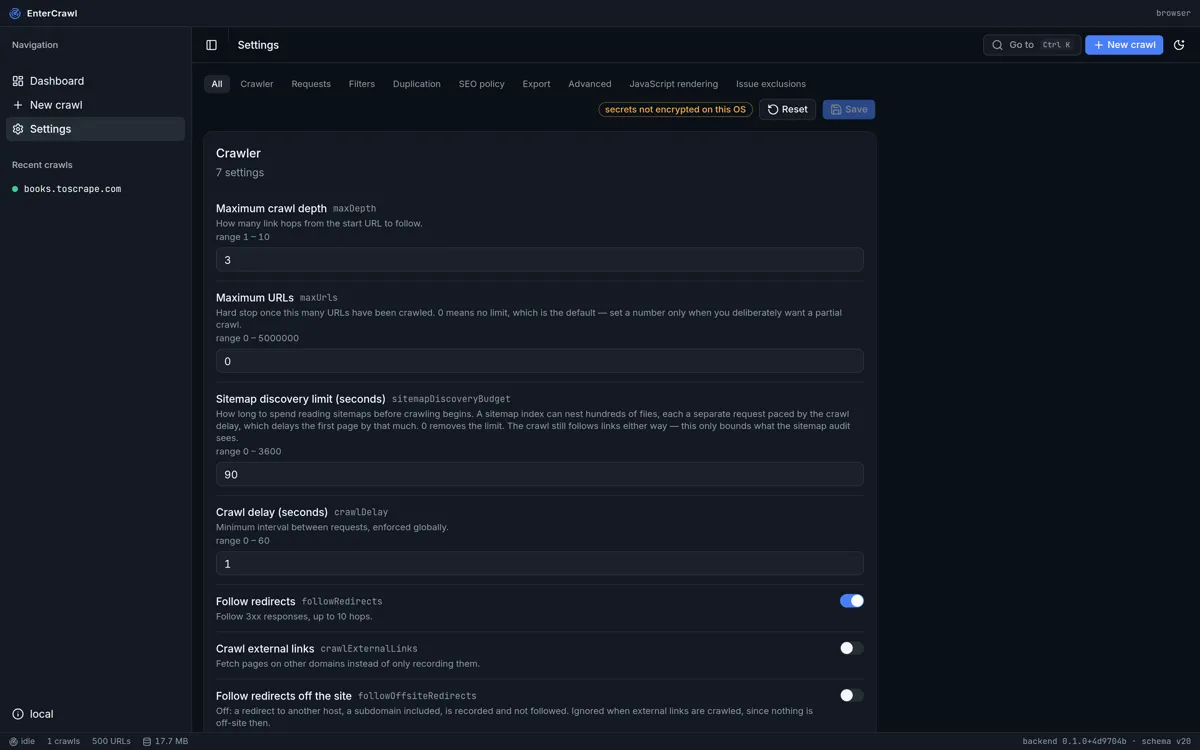
All settings
Crawler
| Setting | Normal value | What it does |
|---|---|---|
| Maximum crawl depth | 3 (1 to 10) | How many link steps from the start page to follow. |
| Maximum URLs | 0 (no limit) | Stops the crawl at this number of pages. |
| Sitemap discovery limit (seconds) | 90 | How long to read sitemaps before the crawl starts. 0 removes the limit. |
| Crawl delay (seconds) | 1 | The shortest time between two requests, for the whole crawl. |
| Follow redirects | On | Follows redirects, up to 10 steps. |
| Crawl external links | Off | On: also opens pages on other websites. Off: only records them. |
| Follow redirects off the site | Off | On: follows a redirect to another host or subdomain. |
Requests
| Setting | Normal value | What it does |
|---|---|---|
| Request timeout (seconds) | 10 | How long to wait for a page before it counts as no response. |
| Retries | 3 | How many times to try again after a connection error. |
| Accept-Language header | en-US,en;q=0.9 | The languages that EnterCrawl asks the site for. |
| Respect robots.txt | On | Obeys the rules of the site. Blocked pages show on the Blocked screen. |
| Allow cookies | On | Keeps cookies that the site sends. |
| Discover sitemaps | On | Reads the sitemaps of the site and adds their pages. |
| Enable PageSpeed Insights | Off | In this version this switch has no effect. The PageSpeed screen needs only the API key. |
| Google API key | Empty | Your key for PageSpeed. See Google API key for PageSpeed. |
| Basic auth username | Empty | For a test or intranet site that asks for a user name and password. |
| Basic auth password | Empty | The password for the setting above. |
The help text in the app says that the API key and the password are kept in plain text. On Windows, EnterCrawl encrypts them with your Windows account. That help text is out of date.
Filters
| Setting | Normal value | What it does |
|---|---|---|
| Include extensions | html, htm, php, asp, aspx, jsp | Only these file types count as pages. |
| Exclude extensions | pdf, doc, zip, images, video and more | EnterCrawl never opens these file types. |
| Include patterns | Empty | One pattern on each line. Empty means all addresses. |
| Exclude patterns | Empty | One pattern on each line. EnterCrawl skips matching addresses. |
| Maximum file size (MB) | 50 | Skips pages that are larger. |
| Data extractors | [] | Your own rules. See Custom rules. |
A pattern uses * for any text. For example, */blog/* matches every address with /blog/ in it.
Duplication
| Setting | Normal value | What it does |
|---|---|---|
| Detect duplicate content | On | Finds pages with the same or almost the same text. |
| Duplication threshold | 0.85 | How similar two pages must be to count as duplicates (0 to 1). |
SEO policy
| Setting | Normal value | What it does |
|---|---|---|
| Title minimum characters | 30 | Shorter titles show as Title Too Short. |
| Title maximum characters | 60 | Longer titles show as Title Too Long. |
| Title minimum words | 0 (off) | Titles with fewer words show as an issue. |
| Title maximum words | 0 (off) | Titles with more words show as an issue. |
| Description minimum characters | 120 | Shorter meta descriptions show as an issue. |
| Description maximum characters | 160 | Longer meta descriptions show as an issue. |
| Thin-content word floor | 300 | Pages with fewer words show as Thin Content. |
| Maximum H1 headings | 1 | Pages with more show as Multiple H1 Tags. |
| Response time warning (ms) | 1000 | Slower pages show as a warning. |
| Response time error (ms) | 3000 | Slower pages show as an error. |
| Page size warning (MB) | 1 | Larger pages show as a warning. |
| Page size error (MB) | 3 | Larger pages show as an error. |
| Extended issue checks | On | Extra checks, for example social tags and missing structured data. Keep it on. |
| Subheading check word floor | 600 | Longer pages with no H2 or H3 show as an issue. 0 turns it off. |
| Maximum words between subheadings | 500 | Pages with more words between headings show as an issue. 0 turns it off. |
| Editorial URL patterns | /blog/, /news/, /article/ and others | Pages with these parts in the address must show an author. |
Export
| Setting | Normal value | What it does |
|---|---|---|
| Default export format | csv | The format that the Export window selects first. xlsx means Excel. |
| Default export fields | url, status_code, title, meta_description, h1 | The URL columns that the Export window ticks first. The Export window shows the technical name of each column. |
Advanced
| Setting | Normal value | What it does |
|---|---|---|
| Concurrent workers | 5 | How many pages EnterCrawl reads at the same time. |
| Memory limit (MB) | 512 | The crawl stops and saves if EnterCrawl uses more memory. |
| Use a proxy | Off | Sends requests through a proxy server. |
| Proxy URL | Empty | The proxy address, for example http://127.0.0.1:8080. |
| Custom headers | Empty | Extra request headers, one Name: value on each line. |
JavaScript rendering
| Setting | Normal value | What it does |
|---|---|---|
| Render JavaScript | Off | Opens each page in a browser on your computer. About 10 times slower. Turn it on only if pages come back empty. |
| Wait after load (seconds) | 3 | How long to wait for the page scripts. |
| Render timeout (seconds) | 30 | How long to wait for one page. |
| Browser | Whichever is found | Chrome, Edge, Brave, Vivaldi, Opera or Chromium. Edge is part of Windows, so there is always one. |
| Headless | On | Off: shows the browser window, which helps to see why a page does not load. |
| Viewport width | 1920 | The width of the browser page. |
| Viewport height | 1080 | The height of the browser page. |
| Concurrent pages | 3 | How many pages the browser opens at the same time. |
Issue exclusions
| Setting | Normal value | What it does |
|---|---|---|
| Issue exclusion patterns | A long list: admin, login, cart, account, search pages and more | Hides issues on these pages. EnterCrawl still crawls them. A line that starts with # is a note. |
Custom rules
A custom rule (the app calls it a data extractor) finds a value on every page. Examples: a price, an author name, or the analytics tag. The values show on the Extracted screen and in exports.
Caution: A mistake in a rule stops the next crawl from starting, with only the message "could not start the crawl". If you see this message after you add a rule, remove the rule and try again.
- Click Settings, then Filters.
- Find Data extractors.
- Type the rules between square brackets. Put a comma between two rules.
- Click Save.
- Start a new crawl. A crawl from before the rule has no values for it.
Each rule has a name (the column name), a kind (css, xpath or regex) and an expression. It can have a mode:
extract(normal): records the value.contains: records how many times the expression matched.missing: shows "not found" on pages where the expression did not match.
This example finds the price and lists the pages without a Google Analytics 4 tag:
[{"name":"price","kind":"css","expression":".product-price"}, {"name":"no GA4","kind":"regex","expression":"G-[A-Z0-9]+","mode":"missing"}]
If you do not know CSS, XPath or regular expressions, ask a developer to write the rule for you.
Sections and site profile
Sections
Sections put the pages of a site into groups, for example Blog and Shop. The By section card on the Overview then shows the pages and issues of each group. Use it to give each team its own list.
- On the Overview, click Set up sections. EnterCrawl suggests sections from the addresses that it found.
- For each section, type a name in Section and a pattern in URL pattern, for example
/blog/*. - Put specific patterns above general patterns. The first match wins.
- Click Save sections.
Sections belong to the domain, so they apply to every crawl of the site, also old crawls.
Site profile
The site profile holds facts that a crawl cannot see, for example the logo, the social profiles and the address. EnterCrawl adds them to the organisation markup that it makes.
- Open the Schema screen.
- Click Site profile.
- Fill in the facts that you know. Type the full logo address, with
https://. In Same as, type the social profile addresses, one on each line. - Click Save profile.
Google API key for PageSpeed
The PageSpeed screen needs your own Google API key. The key is free. The free limit is far more than EnterCrawl uses. EnterCrawl sends the key only to Google.
- Open the Google Cloud console and sign in with a Google account.
- Make a project, or select a project that you have.
- Go to APIs and Services, then Library. Search for "PageSpeed Insights API" and click Enable.
- Go to APIs and Services, then Credentials. Click Create credentials, then API key.
- Copy the key.
- In EnterCrawl, click Settings, then Requests.
- Paste the key in Google API key.
- Click Save.
Google recommends that you limit the key to the PageSpeed Insights API. The Settings screen has a link to the Google set-up guide.
Your data
EnterCrawl keeps all crawls and settings on your computer only. Nothing goes to an Entermind server. The data is in this folder:
%APPDATA%\EnterCrawl
To open it, press Windows+R, type %APPDATA%\EnterCrawl and press Enter. The folder has the database entercrawl.db and the log file logs\entercrawl.log.
Make a backup
Caution: Close EnterCrawl before you copy the database. A copy made while EnterCrawl is open can be damaged.
- Close EnterCrawl.
- Open the folder
%APPDATA%\EnterCrawl. - Copy the whole folder to a safe place, for example OneDrive.
Move to a new computer
For a few crawls, export each one as a crawl archive and import it on the new computer. For all crawls, copy the whole folder to the same place on the new computer while EnterCrawl is closed. Your Google API key and passwords do not move: EnterCrawl encrypts them for your Windows account, so type them again on the new computer.
Get a new version
- Close EnterCrawl.
- Download the new file from entercrawl.entermind.my.
- Delete the old file, or keep it as a spare.
- Open the new file. Your crawls and settings stay in place.
Caution: A new version can update the database. After that, an older version cannot open the database. Make a backup before you open a new version for the first time.
Remove EnterCrawl
Delete the program file. To delete your crawls too, delete the folder %APPDATA%\EnterCrawl. You cannot undo this.
Problems and what to do
| What you see | What to do |
|---|---|
| "Windows protected your PC" | Click More info, then Run anyway. See Download and open EnterCrawl. |
| The window does not open | EnterCrawl needs Microsoft Edge WebView2, which is part of Windows 11 and most Windows 10 computers. Ask the IT team to install the WebView2 Runtime from Microsoft. |
| "This screen failed to render" | Click Back to the dashboard. Your crawls are safe. Click Copy diagnostics and send the text with your report. |
| "That target was refused" | The address is not a public website, or it does not exist. Check the spelling of the address. |
| "A crawl is already running" | Only one crawl can run at a time. Stop the other crawl, or wait until it ends. |
| "could not start the crawl" | Often a mistake in a custom rule. Remove the rule in Settings, Filters, Data extractors. |
| "JavaScript rendering needs Chrome, Edge, Brave or Chromium installed on this machine" | Install Chrome or Edge, or turn off Render JavaScript in Settings. |
| Pages have no title, no headings and no links | The site builds its pages with JavaScript. Crawl again with the JavaScript site preset. |
| The crawl is very slow | The normal settings ask for one page each second. For a first look, use Quick look. Use Gentle only for a small server. |
| A page is missing from the results | Look on the Blocked screen. It tells you why EnterCrawl did not open the page. |
| The crawl shows "failed" after the computer restarted | On the Dashboard, click the three dots beside the crawl and click Resume. |
| "Crawl auto-stopped at the configured memory ceiling" | The crawl used too much memory. Resume uses the first settings of the crawl, so start a new crawl instead. Before you click Start crawl, set a higher Memory limit in Advanced settings. |
| "format must be csv, json or xml" | You ticked two or more datasets with Excel. Select CSV or JSON. |
| "PageSpeed needs a Google API key" | Add your key in Settings, Requests. See Google API key for PageSpeed. |
| "That crawl is still running; stop it first" | Click Stop on the crawl, then delete or archive it. |
| "Could not import that archive" | The file is not a crawl archive, or a newer version of EnterCrawl made it. Ask your colleague for the archive again. |
| "Backend unreachable" | Close EnterCrawl and open it again. |
Report a problem
Click local at the bottom of the side bar to open the About screen. Copy the Version and Commit values and put them in your report. If you saw "This screen failed to render", click Copy diagnostics and paste the text in your report too. The log file %APPDATA%\EnterCrawl\logs\entercrawl.log can also help.
Words used in EnterCrawl
| Word | Meaning |
|---|---|
| Crawl | One visit of EnterCrawl to a website, and the results of that visit. |
| URL | The address of a page, for example https://example.com/contact. |
| Status code | The number that the server sends with a page. 200 means that the page loaded. 3xx is a redirect. 404 means not found. 5xx is a server error. |
| Redirect | An address that sends the visitor to another address. |
| Depth | The number of link steps from the start page to a page. |
| Clicks from home | The number of clicks a visitor needs to get from the home page to a page. |
| Orphan page | A page that no other page of the site links to. |
| Title | The name of a page that shows in search results and on the browser tab. |
| Meta description | The short text under the title in search results. |
| H1, H2, H3 | The headings of a page. A page normally has one H1. |
| Canonical URL | The address that the page says is its main address. Search engines use it when the same page has several addresses. |
| robots.txt | A file on the website that tells crawlers which pages they can open. |
| Sitemap | A file that lists the pages of a site for search engines. |
| llms.txt | A file that tells AI assistants what a site contains. It is a new idea, not a standard. |
| Structured data, JSON-LD, schema | Hidden code on a page that tells search engines and AI what the page is about, for example a product with its price. |
| Thin content | A page with too few words to be useful. |
| Duplicate content | Two or more pages with the same or almost the same text. |
| Hreflang | Code that links the language versions of a page. |
| SEO | Search engine optimisation: work that helps a site to show in search results. |
| AEO, GEO | Answer engine optimisation and generative engine optimisation: work that helps AI assistants to find and quote a site. |
| E-E-A-T | Experience, expertise, authority and trust. Signals that show that a page is reliable. |
| Core Web Vitals | Google measurements of page speed and stability, on the PageSpeed screen. |
| Fix pack | The zip file of tasks and ready files for the developer. |
| Crawl archive | One file that holds a whole crawl, to keep or to give to a colleague. |